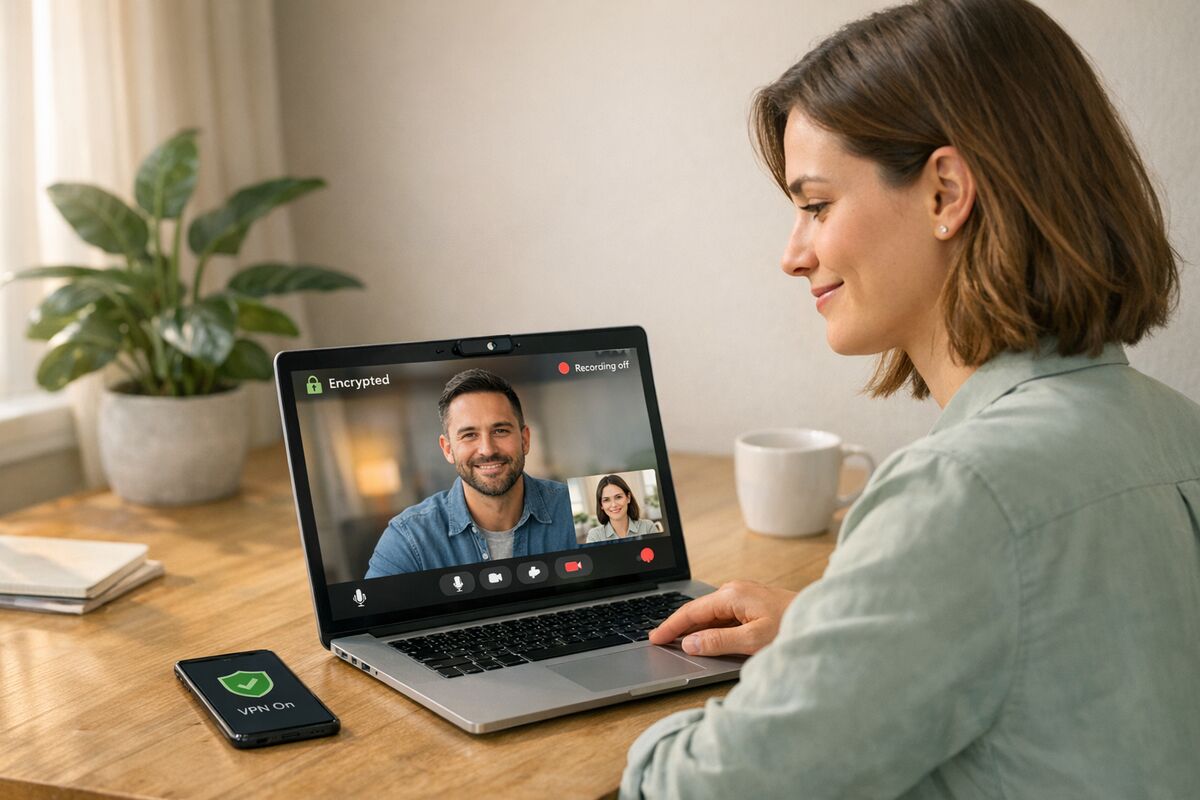
How to Protect Your Privacy in Online Video Chats
Practical steps to secure video chats: tune permissions, use virtual backgrounds and VPNs, pick encrypted apps, and limit recordings.
Video chats are convenient but come with privacy risks. From hacked meeting links to exposed personal details, online calls can leave you vulnerable. Here's how to protect yourself:
Key Protection Methods:
- Adjust Platform Settings: Disable auto camera/microphone activation and use features like waiting rooms and meeting locks.
- Control Device Access: Manage camera and microphone permissions on your operating system and browser.
- Secure Your Space: Use virtual backgrounds, blur tools, or plain walls to hide personal details.
- Protect Your Internet Connection: Use a VPN and secure your Wi-Fi with strong passwords.
- Choose Privacy-Focused Platforms: Look for services with end-to-end encryption and minimal data collection.
- Limit Recordings: Avoid recording calls unless necessary, and always get consent.
Set Up Platform Privacy Settings
Default video chat settings often prioritize ease of use over privacy. Tweaking these settings is your first step in safeguarding against unauthorized access and protecting sensitive data during video calls. Think of these adjustments as the groundwork for a safer video conferencing experience.
Start by disabling the automatic activation of your camera and microphone. For instance, in Zoom, you can toggle "Participants video" to Off and enable "Mute participants when they join a meeting" to On. Google Meet offers similar options—set your profile to join meetings with both the camera and microphone turned off by default. These simple changes can help prevent accidental exposure when you enter a call.
Camera and Microphone Permissions
Once you're in a meeting, host controls become essential tools for managing audio and video. Hosts can mute all participants, disable individual participant video, and set meetings to automatically mute attendees upon entry—especially useful for larger gatherings to reduce background noise. Importantly, while hosts can request participants to unmute, they cannot force activation of anyone's microphone.
If your platform includes "Attention Tracking", make sure to turn it off. This feature, previously available on Zoom but later removed due to privacy concerns, monitored whether users were actively focused on the meeting window. Additionally, disable "Auto-saving chats" to avoid automatic retention of any potentially sensitive conversations.
Meeting Controls and Security Features
Features like Waiting Rooms and meeting locks act as critical security layers. For example, Zoom enables Waiting Rooms by default for free and education accounts, allowing hosts to screen participants before they join. Similarly, Google Meet employs a "knocking" system where uninvited participants must request access. Once all expected attendees are in the meeting, you can lock the session to block new entries.
To prevent unauthorized disruptions, set screen sharing to "Host Only" by default. This ensures no participant can share unwanted or harmful content during the meeting. Avoid using Personal Meeting IDs (PMIs) for public or scheduled meetings. Instead, rely on randomly generated meeting IDs. Both Zoom and Google Meet use 10-character meeting IDs, with Google Meet selecting from a set of 25 characters to make brute-force guessing nearly impossible.
"Meet employs a vast array of safety measures to keep your video meetings safe. These include anti-hijacking controls for both web video meetings and telephony dial-ins." — Google
If a disruption occurs, Zoom's "Suspend Participant Activities" feature acts as an emergency stop. This tool freezes all video, audio, chat, and screen sharing, giving you time to identify and remove the troublemaker. Familiarize yourself with the Security Icon in your host toolbar—it provides quick access to lock meetings, enable waiting rooms, or adjust features without navigating through multiple menus.
Once you've secured your platform settings, it's time to shift attention to managing permissions at the device level.
Control Device-Level Camera and Microphone Access
Your operating system settings provide an essential layer of protection by allowing you to control which apps can access your camera and microphone. Managing these permissions is a straightforward way to enhance your privacy.
Operating System Permissions
Your device's settings let you regulate access to sensors like cameras and microphones. For Windows 11, go to Start > Settings > Privacy & security, then select Camera or Microphone to enable or disable access for all apps or specific ones. Windows separates permissions for Microsoft Store apps, which can be managed individually, and desktop apps, which are controlled with a general toggle.
On macOS, navigate to the Apple menu > System Settings > Privacy & Security, then click Camera or Microphone to customize permissions for each app. macOS also provides visual indicators: a green icon in the menu bar shows when the camera is active, and an orange icon appears for microphone use.
For iOS, head to Settings > Privacy & Security, then tap Camera or Microphone to review app permissions. Devices running iOS 14 or later display an orange dot when the microphone is in use and a green dot for the camera.
On Android, open Settings > Security and privacy > Privacy > Permission manager, then select Camera or Microphone to adjust access settings. Options like "Don't allow" or "Ask every time" can provide tighter control.
If you frequently use web-based video chat tools, adjusting permissions on your browser can help. In Chrome, go to Settings > Privacy and security > Site settings > Camera/Microphone to manage access for specific websites.
"Every time you install a new app on your device, you're adding another back door...Reducing that surface is always good." — Cody Feng, Project Leader for Security and Privacy Testing at Consumer Reports
After configuring these settings, you can add an extra layer of security with physical solutions.
Physical Camera Covers and Microphone Blocks
While software controls are essential, physical barriers provide a more definitive safeguard. Cover your webcam with a thin piece of opaque tape or use a sliding cover. Some devices even come with built-in camera shutters. However, Apple advises against using thick covers on MacBooks, as they can damage the display when the laptop is closed.
For external webcams, simply unplugging them when not in use is the most foolproof method. Built-in microphones, however, are harder to block. Even mic blockers that plug into headphone jacks may not work reliably on newer devices.
"That physical barrier is a great solution for video, but it won't work quite as well for your microphone." — Patrick Jackson, Chief Technology Officer at Disconnect
If you need to disable audio capture, one option is to set your system's default input to a disconnected external device, like a USB headset. This ensures that no sound is picked up.
Secure Your Physical Space and Internet Connection
Once you've secured your device, it's time to think beyond the screen. Your physical surroundings and network connection can unintentionally reveal a lot about you. Taking precautions in these areas strengthens your privacy, especially during video calls. These steps complement your platform and device settings to create a robust privacy shield.
Background Privacy and Virtual Backgrounds
Your video background can say more about you than you might realize.
"The space you're in during a call can expose information about where you live, your habits, and your hobbies." — Electronic Frontier Foundation
Things like family photos, documents, bookshelves, or even landmarks visible through windows can give away personal details or your location.
To protect your privacy, consider using virtual backgrounds or blur tools. For example:
- On Zoom, go to Preferences > Virtual backgrounds to replace your real background with an image or video.
- On Skype, use the background blur option in the call settings, which keeps you in focus while obscuring everything else.
Always check your video preview to ensure these features are active before joining a call. If your platform doesn't offer these tools, aim your camera at a plain wall and avoid showing bookshelves, windows, or personal items. Also, if you're sharing your screen, close any browser tabs or documents containing sensitive information.
Secure Internet Connections and VPN Usage
Your internet connection is another critical piece of the privacy puzzle. Video chat data travels through your network, and on unsecured connections, hackers can intercept it or track your activity. This risk is especially high on public Wi-Fi in places like cafes, airports, or hotels, where attackers can use tactics like "evil twin" hotspots or man-in-the-middle attacks.
A Virtual Private Network (VPN) can help by encrypting your connection, making your data unreadable to anyone attempting to spy. VPNs also mask your IP address, preventing platforms from tracking your location. Subscriptions typically cost $5–$15, but choose wisely. An independent study revealed that 38% of Android VPN apps contained malware, and 18% lacked encryption. Stick to well-known providers with independent audits.
At home, start by securing your Wi-Fi router. Use a strong, unique password and keep the firmware updated to block malware from spreading across your devices. Additionally, enable automatic updates for your operating system, browser, and video conferencing tools. These updates often include critical fixes for security vulnerabilities.
Review Platform Security and Privacy Policies
Once you've secured your device and connection, it's time to dive into how different platforms handle your data. Not all services prioritize privacy equally, and understanding their policies can make a big difference. Some platforms might share your information with advertisers or store your conversations longer than necessary. Knowing what to watch for can help you steer clear of these pitfalls, complementing the measures we've already discussed.
Encryption Standards and Data Retention Policies
When it comes to communication privacy, end-to-end encryption (E2EE) is the gold standard. Platforms using E2EE ensure that only the people involved in the conversation can access its content. Even the platform itself can't listen in.
"End-to-end encryption means only those who are part of the call can access the call's content. No one can listen in, not even the company." — Ashley Boyd, VP of Advocacy at Mozilla Foundation
This level of encryption is a step above client-to-server encryption, which secures data during transmission but leaves it accessible once it reaches the platform's servers. Check whether E2EE is enabled by default or if you need to turn it on manually. Also, look for encryption at rest, which protects stored data like chat histories or call recordings.
Data retention policies are another critical factor. Some platforms may not store the content of your conversations but might still keep metadata—like who you spoke to and when. Always verify whether your provider repurposes data for advertising and whether they hold certifications like SOC 2, ISO 27001, GDPR, or HIPAA.
A 2020 study revealed that 12 out of 15 popular video call apps met minimum security standards. Top performers included Zoom, Google Duo, Apple FaceTime, and Signal. However, platforms like Houseparty, Discord, and Doxy.me lagged behind. Beyond encryption, look for features like multi-factor authentication (MFA) and automatic recording notifications, which ensure participants are aware when a call is being recorded.
Comparing Glimr with Alternatives
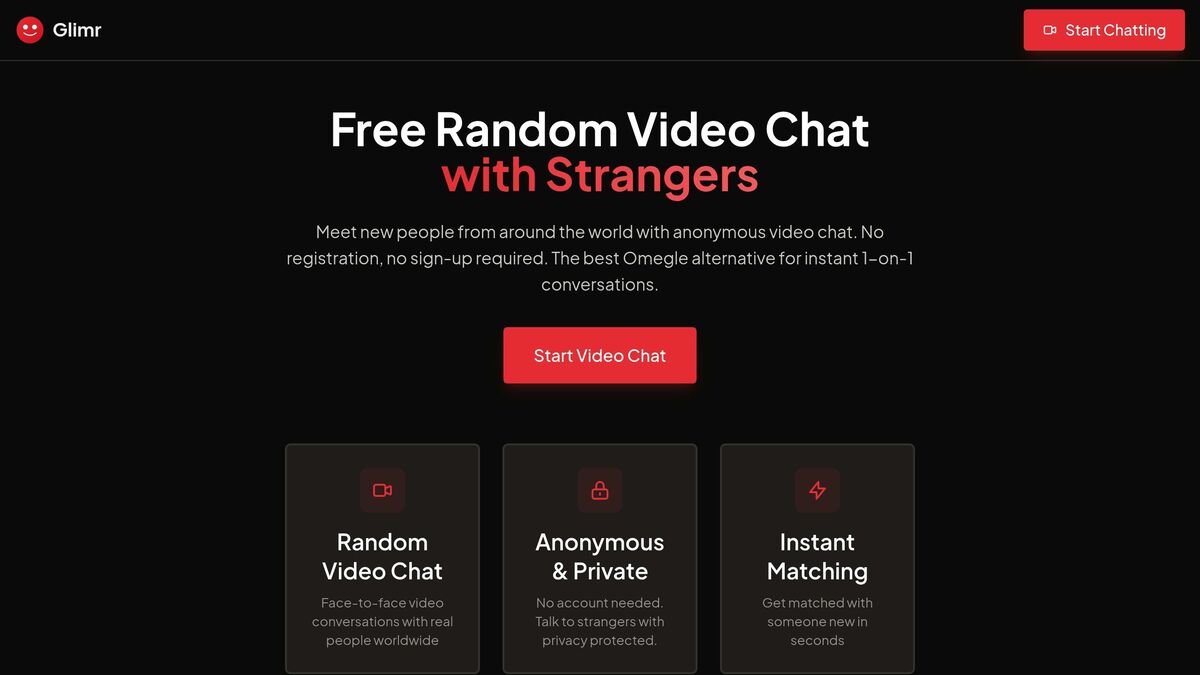
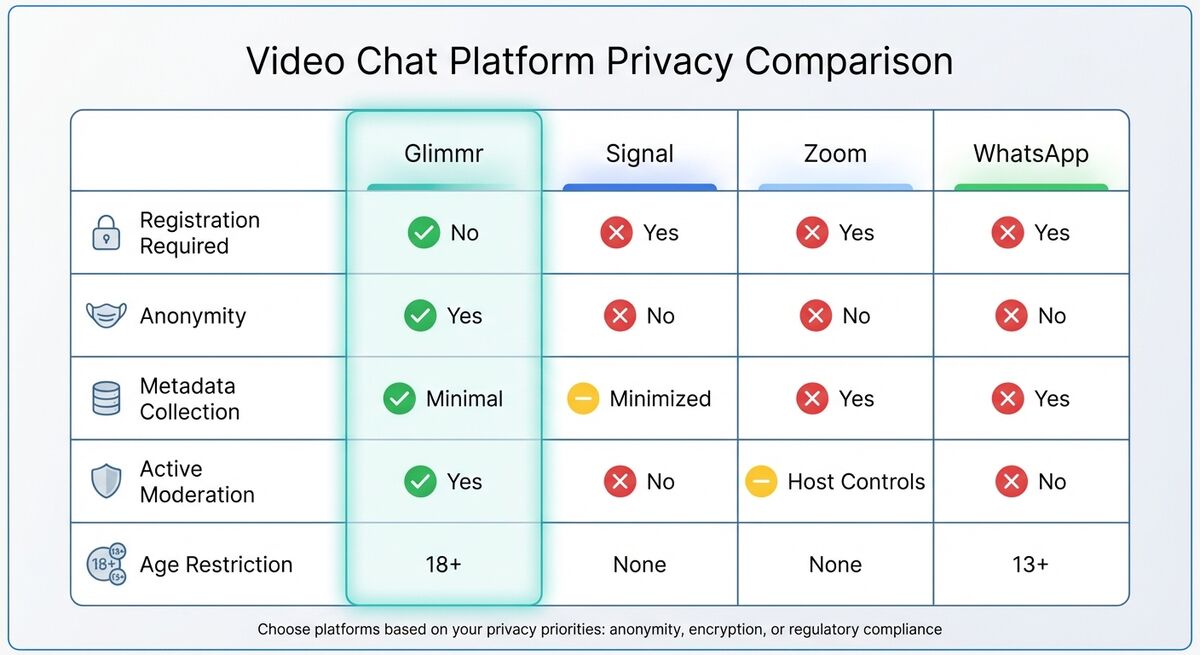
Glimr stands out from mainstream platforms by prioritizing anonymity. Unlike services such as Zoom, Google Meet, or Microsoft Teams that require personal information for account creation, Glimr allows you to join video chats without registering. No email, phone number, or other identifying details are needed—just instant, anonymous access.
This approach is quite different from platforms like WhatsApp and Signal, both of which require phone numbers for registration. Glimr also incorporates active moderation to curb harmful behavior, an issue often overlooked by less-regulated platforms.
"Privacy isn't just about keeping secrets—it's about trust." — Mozilla researcher Misha Rykov
| Feature | Glimr | Signal | Zoom | |
|---|---|---|---|---|
| Registration Required | No | Yes | Yes | Yes |
| Anonymity | Yes | No | No | No |
| Metadata Collection | Minimal | Minimized | Yes | Yes |
| Active Moderation | Yes | No | Host Controls | No |
| Age Restriction | 18+ | None | None | 13+ |
Glimr's free plan offers anonymous video chat with built-in tools for reporting violations, making it a strong choice for users who value privacy and prefer not to link their conversations to personal information.
"The safest strategy is to assume you might be recorded and, if possible, avoid sharing private information via video conference." — Jonah Fabricant, Federal Trade Commission
Ultimately, the right platform depends on your privacy priorities—whether that's full anonymity, advanced encryption, or strict regulatory compliance. Once you've chosen, managing your chat history can further enhance your privacy.
Manage Chat History and Recording Settings
Fine-tuning your chat history and recording settings can significantly enhance your privacy. While securing your platform and device settings is essential, managing how data is saved and shared ensures that your sensitive information stays protected. Even with secure settings, chat logs and recordings can still pose privacy risks if not handled carefully.
Disabling Automatic Chat Saving
Many platforms automatically save chat histories, potentially storing your messages on servers or making them accessible to others. To prevent this, you can disable auto-saving features. For instance, Zoom allows you to turn off automatic chat saving in the "In Meeting (Basic)" settings. Google Meet lets you permanently delete call and chat histories through your account settings. On Skype, you may need to adjust the "Messaging" settings to stop received photos from being saved to your device.
Instead of relying on automatic saving, use manual export tools when necessary. Google Meet's "Download Your Data" feature via Google Takeout is a great example. It enables you to export specific chat logs or recordings without retaining unnecessary data. Regularly clear chat logs and disable auto-save to minimize the amount of stored information.
Recording settings require just as much attention to safeguard privacy.
Recording Consent and Verification
Recording conversations without consent is not only a privacy breach but also illegal in several U.S. states, such as California, where "all party" consent laws mandate that everyone involved must agree to the recording.
"Individuals and departments/units should not record any activities while remote if those same activities would not be recorded while in-person." — University of Washington Privacy Office
Before starting a recording, it's crucial for hosts to announce it clearly and explain how the recording will be used. Participants who prefer not to be recorded should have options to protect their privacy, such as using display names without personal details and keeping their audio and video off. Most platforms provide visual indicators to show when a session is being recorded—rely on these cues to stay informed.
For platforms like Glimr, where anonymity is a priority, strict recording protocols are even more critical.
"Don't record the meeting unless it's necessary." — Jeff Greene, Director of the National Cybersecurity Center of Excellence at NIST
If recording is unavoidable, ensure the file is encrypted, secured with a passphrase, and remove any cloud-stored copies as soon as they are no longer needed. These precautions align with the broader security measures discussed earlier, helping to maintain confidentiality and privacy.
Conclusion
Safeguarding your privacy during online video chats requires a combination of thoughtful security practices. Start by adjusting platform settings, managing device permissions, and using features like virtual backgrounds and encrypted connections. Opt for platforms that prioritize strong encryption and limit data retention.
End-to-end encryption is a cornerstone of secure communication, ensuring that only participants can access the content of conversations.
"The next best thing [to in-person communication] is to use end-to-end encryption." — The Electronic Frontier Foundation
However, even with encryption, metadata—like who you talk to and when—can still expose sensitive patterns. Addressing these risks helps create a more secure foundation.
Another key step is restricting app access to your camera and microphone.
"Every time you install a new app on your device, you're adding another back door...Reducing that surface is always a good idea." — Cody Feng, Consumer Reports
Whenever possible, use web browsers for video chats, and regularly review app permissions to ensure your privacy settings are up to date.
Choosing the right platform also plays a crucial role. For anonymous video chats, platforms like Glimr offer privacy-focused features without requiring personal information such as email addresses or phone numbers. Always look for platforms with strong encryption, minimal data collection, and clear privacy policies.
Finally, stay vigilant during video calls.
"The safest strategy is to assume you might be recorded and, if possible, avoid sharing private information via video conference." — Jonah Fabricant, Federal Trade Commission
FAQs
How can I make sure no one records my video chats without my permission?
To ensure your video chats stay private and aren't recorded without your consent, start by choosing platforms with robust privacy features. Look for tools that offer options like meeting passwords, session locking, and the ability to restrict recording permissions to only trusted participants. Many platforms also let you disable automatic recording or control who can record during a session.
Another important safeguard is using platforms with end-to-end encryption, which helps block unauthorized access or eavesdropping. Be cautious about sharing meeting links—avoid posting them publicly—and always review your privacy settings before starting a call. Opting for secure, privacy-focused video chat tools can give you better control over your conversations and help keep them secure. Small steps like these can make a big difference in protecting your privacy.
Which video chat platforms are best for protecting my privacy?
The best video chat platforms for privacy are those that prioritize end-to-end encryption, password protection, and strict access controls. Options like Zoom (when properly configured with its advanced privacy settings) and Slack stand out for their strong security measures, helping to keep your conversations secure and protected from unauthorized access.
If you're seeking even tighter privacy, explore platforms specifically built with security as their main focus. Choose services that emphasize encryption and have clear policies against sharing user data. It's also a good idea to go through the platform's privacy settings and tweak them to better safeguard your personal information.
How can virtual backgrounds help protect your privacy during video calls?
Virtual backgrounds are a handy way to keep your privacy intact during video calls. By either replacing or blurring your surroundings, they shield personal details like family photos, sensitive documents, or other items you'd rather keep out of view.
This feature is particularly helpful when you're working from home or joining calls in shared spaces. It ensures your personal life stays out of the spotlight. Plus, many platforms let you customize these backgrounds, so you can maintain a polished, professional look while keeping your private space, well, private.